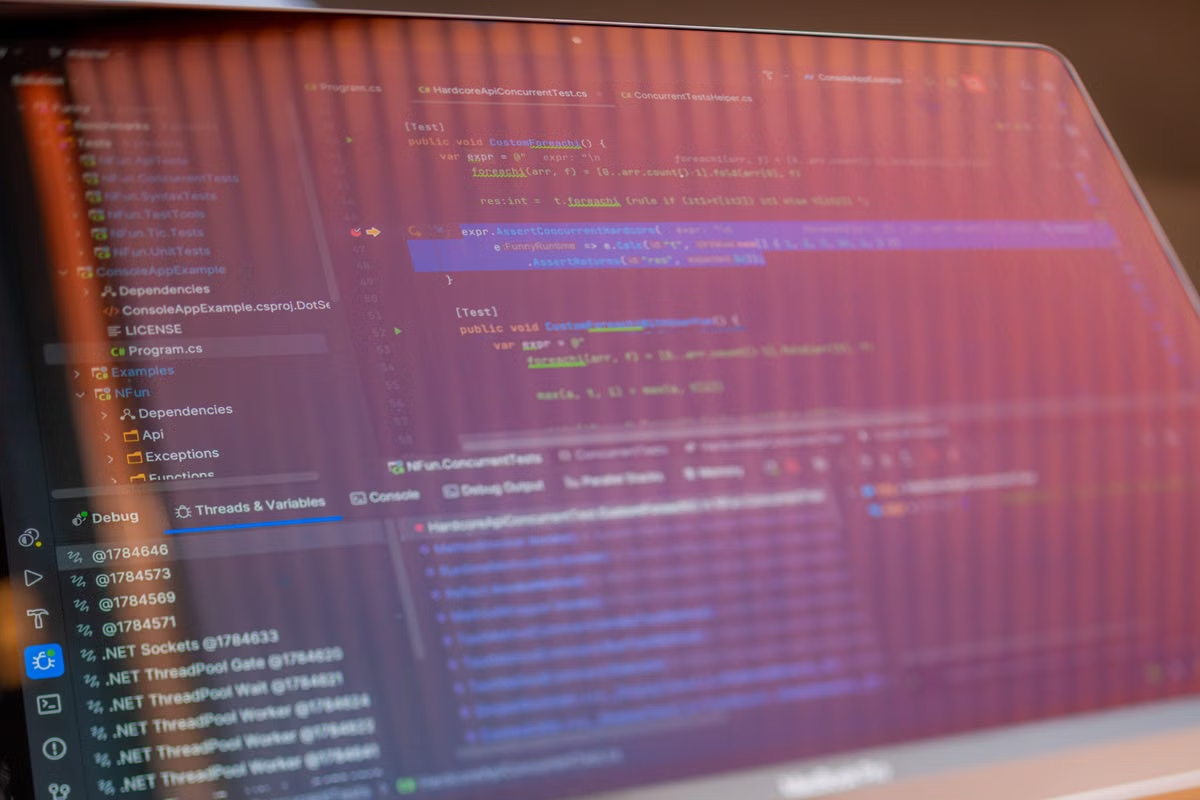
Suitable: use the Xcode 27.1 Markdown editor to read and edit project documents such as a README, then inspect the rendered preview. It is not a build or test result; whether you need a Mac depends on what your course asks you to deliver.
This guide is for students opening a Swift or iOS project who need to understand or improve its README.
It also helps first-time Markdown users check how their edits appear to a reader.
If your course requires building or running an app, use the environment guidance below to decide whether you need access to macOS.
Last updated October 24, 2026; checked against the Xcode 27 release notes and current Xcode system requirements.
What the Xcode 27.1 Markdown editor is for
A README is a project’s introduction: it can explain what the project does, how to start it, and what a student should know before using it. Markdown is plain text with simple marks for formatting. For example, a line beginning with ## is commonly treated as a section heading, while a hyphen can mark an item in a list.
The important distinction is that Xcode’s Markdown editor is for working with project documentation. It can show a rendered view of project Markdown, let you edit the document, and provide a preview through Canvas, as described in the Xcode 27 release notes. Those features help you check the document’s presentation. They do not compile Swift, resolve a project’s dependencies, or confirm that an app works.
Keep the scope narrow as you start: this is a guide to reading and editing Markdown files inside a project. It is not a Swift code editor tutorial, an Xcode installation walkthrough, or a complete Markdown reference. For syntax details beyond the examples here, the CommonMark specification documents a widely used Markdown standard; a project may also follow additional conventions set by its course or repository.
How do you open a Markdown file and view its preview?
Start with the file already in the project, rather than creating a new document just to test the editor. In the project navigator, look for a file with a Markdown extension, commonly README.md. Select it and inspect the view Xcode opens. The exact controls and labels can vary with the installed Xcode build, so follow the visible options in your current version and compare them with the Xcode 27 release notes linked above.
When you first open the file, read it before editing. Look for the project’s purpose, setup instructions, commands, and any notes about files or tools you need. A README may also describe the expected result of an exercise. This can save time: a student who runs a command before checking the project instructions may miss a setup step or use the wrong target.
A useful reading pass is to match each instruction to something you can identify:
- Does the document say what the project is meant to demonstrate?
- Does it explain how to prepare or open the project?
- Are there commands or prerequisites you do not recognize?
- Does it say what the course expects you to submit?
Treat the rendered view as a way to read the document, not as evidence that the project is ready to run. A clean-looking preview says nothing about whether the Swift source compiles or whether an app launches.
If the file does not appear where you expect, check the project’s file organization before assuming it is missing. Apple’s project file and folder guidance explains how files are managed in a project. A README can sit at the repository’s top level or within a folder, depending on how the course project is organized.
How do you switch between editing and source views?
Use the rendered presentation when you want to read the document as a student or reviewer would. Use the editable text view when you need to change the words or formatting marks. If the current Xcode interface offers a source or editing view for the file, switch to it using the controls shown in that version; do not rely on a control name remembered from a different release.
The difference is similar to looking at a formatted page versus looking at the text and marks that describe it. In source, you might see:
## What this project does

A small Swift exercise for practicing lists.

- Read the instructions
- Run the project
- Record your result

[Course notes](course-notes)
The rendered view should present a heading, a short paragraph, a list, and a link. The source view is where you change those words and marks. The precise appearance of the link or other elements depends on the editor’s rendering and the project’s conventions.
For a course README, edit only information you can verify. You might add a short description of your exercise, clarify a step you completed, or document a command your instructor provided. Avoid inventing setup instructions or claiming that a feature works before you have tested it. If the course repository has its own writing rules, those take precedence over a general example.
You can use this small change to understand the relationship between source and presentation:
## Practice notes

I added a short note about the exercise.
The source contains the ## marker. The rendered document should show the words “Practice notes” as a heading, followed by the sentence. The CommonMark reference linked above describes how common Markdown constructs are interpreted, but it does not override a course’s own submission rules.
Check the preview before you share the README
After editing, review the rendered document and the source. Look for mistakes that are easy to miss when you focus only on the words:
- Heading levels: a section title should look like a section, not like ordinary body text.
- Lists: each item should be separated and ordered in the way you intend.
- Links: confirm that the label is meaningful and that the destination is the one your course expects.
- Code examples: check that commands or snippets remain readable and have not been mistaken for ordinary prose.
- Spacing and punctuation: a missing blank line or an extra formatting mark can change how a passage appears.
If the preview and the file seem inconsistent, first confirm that you are looking at the file you just edited. Check whether the change was saved, then inspect the source around the affected heading, list, or link. If it still renders unexpectedly, reduce the passage to a small example and compare its syntax with the CommonMark reference linked above. A project may use a Markdown feature or extension that behaves differently from a basic example, so check its documentation before rewriting unrelated sections.
You can also review the file changes before submitting. If your project uses Git and the command-line tools are available, run:
git diff -- README.md
A sample result might look like this:
-## Project notes
+## Practice notes

-The instructions are here.
+I added a short note about the exercise.
This output shows the text removed and added; it does not prove that the wording meets the course requirements. If you are unfamiliar with Git, use the source control view available to you or ask your instructor how the course expects changes to be reviewed. Do not assume every class requires a Git commit or a particular README structure.
Match the README to your course hand-in
Your course instructions decide what belongs in the project documentation. One instructor may ask for a project summary and steps to run it; another may ask for a short reflection or submission details. Do not treat a generic README template as a mandatory checklist. Open the assignment instructions and the repository’s own notes, then include only what they request or what a reader needs to understand your work.
Before handing in the project, check that the README describes the current version rather than an earlier attempt. If you changed how the project starts, update the related instruction only after verifying it. If you did not run the app, say so when the course asks for testing status; do not let a polished preview imply that you tested functionality.
Keep the original file and review the actual changes before submission. If the course provides a starter repository, avoid replacing its documentation wholesale unless the instructions allow it. A focused edit is easier for a teacher or teammate to review and less likely to remove information that the project depends on.
| Your task | Use the Markdown editor for | What it does not confirm |
|---|---|---|
| Read a project introduction | Read the rendered README and follow its links | That the listed setup steps work |
| Clarify a course explanation | Edit the relevant text and inspect the preview | That the project builds |
| Improve headings or lists | Check both source marks and rendered layout | That the content meets an unstated rubric |
| Review your hand-in | Compare the saved file with course instructions | That the app runs correctly |
Decide whether the assignment needs a Mac
Editing a README and building an Apple-platform app are different jobs. You can work on plain Markdown with a text editor that suits your available computer, but a course that specifically requires Xcode to build or run an Apple-platform project needs an environment that supports Xcode. Check the Xcode system requirements before preparing a Mac: the listed version requirements can change, and your installed release must be compatible with the system you intend to use.
A project build follows a separate workflow from Markdown preview. Apple’s build system documentation describes how Xcode processes a project build. Build schemes can also affect what is built or run; see Apple’s guidance on customizing project build schemes. Neither of these checks is performed just by viewing a README preview.
If you are unsure what the class expects, compare the assignment wording with the deliverables:
- If you only need to read, edit, or submit a Markdown document, start with the tools already available to you.
- If you must open an Xcode project, check whether the course requires a particular Xcode version or macOS environment.
- If you must build, run, or test an Apple-platform app, confirm that your environment can meet those requirements before the deadline.
- If the teacher requires a specific device, simulator, or output, follow that instruction rather than assuming that any Markdown or code editor is enough.
Apple’s Xcode command-line tool reference can help you understand command-line tools associated with Xcode. It is not a shortcut around the course’s environment requirements: first verify which commands and deliverables your assignment actually expects.
| Option | Best fit | Trade-off to consider |
|---|---|---|
| Use your current computer for documentation | The task is limited to reading or editing Markdown | It may not provide the required Xcode environment for an app build |
| Use a Mac you already have access to | You need to build or run locally and can install the required tools | You need to check system compatibility and any device or account restrictions |
| Use a school or borrowed Mac | The course provides access and the available setup matches the assignment | Access hours, permissions, or installed software may be limited |
| Consider a remote Mac | You need a macOS practice environment but do not have a suitable local Mac | You depend on a network connection and should verify that the remote setup fits the course task |
If you are considering remote access, compare the assignment’s needs with the available environment before committing. OakVM provides access to a hosted Mac through VNC, SSH, or a web console, but a remote setup is not automatically the right choice for every class. You can review the Mac environment comparison and ask about a course-specific requirement through OakVM contact options before deciding.
For a documentation-only assignment, do not rent or buy a Mac just to preview a README if your current tools already meet the course rules. For a course that requires native Xcode builds, a Windows-only workflow cannot replace that requirement; a school machine may have limited access, while a borrowed Mac may not be available when you need to practice. Buying a Mac makes more sense if you expect regular, long-term use and need local access; if you only need a temporary practice environment, OakVM may be worth considering after you confirm the course’s Xcode and macOS requirements.
Build and Run Your Swift Projects on a Dedicated Mac
Use OakVM to access a dedicated Apple Silicon Mac for Xcode builds, tests, and app runs when your coursework requires more than editing Markdown.